What Is a Computer?
Working Memory and Permanent Storage
The power goes out while you are writing. When the machine comes back, the version you saved ten minutes ago opens, but your latest sentence is missing. Why did one version survive?
In this example, the latest changes were only in working memory. An application with autosave or recovery may have saved a newer copy too. What matters is whether the changes reached persistent storage before power was lost.
RAM holds what you are working on
RAM, random access memory, holds instructions and data that running programs need right now. Open a document and the computer copies both the program and the file from storage into RAM, where the CPU can reach them far faster than it could by going back to the drive every time.
RAM is volatile. Its contents depend on power. Cut the power and they are gone, which is exactly what happened to your unsaved sentence. Closing a program also hands back most of the RAM it was using, even though the program itself is still installed and your saved file is still on the storage drive.
Storage keeps what you saved
A storage drive provides persistent storage: the
SSD stands for solid-state drive. It stores data in electronic memory chips that retain it without power. “Solid-state” is the clue: the drive can reach different pieces of data electronically instead of moving a mechanism into position first.
HDD stands for hard disk drive. Inside are literal rigid disks, called platters, spinning thousands of times per minute. A small mechanical arm moves a read/write head to the right part of a platter, where data is stored magnetically. That is the faint whirring or clicking you may hear from an older computer.
Compare the parts you can see in these two opened drives. The HDD needs a moving mechanism; the SSD does not.
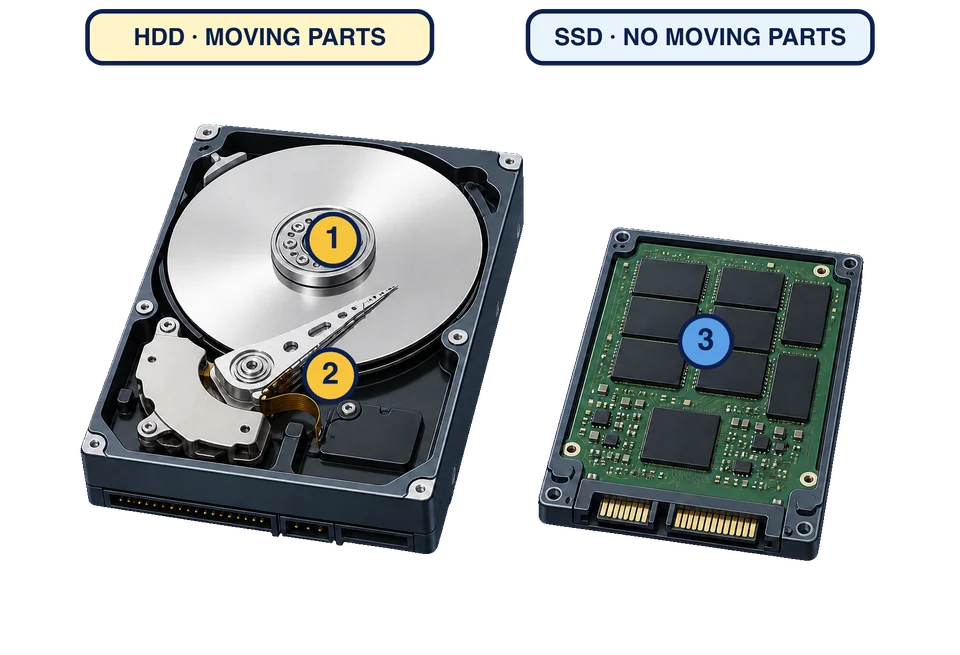
The HDD’s platter is the large circular disk.
The read/write arm moves its tiny head across the platter.
The SSD stores data in memory chips instead of on a moving surface.
A computer may use an SSD, an HDD, or both.
That movement explains much of the speed difference. Before an HDD can read a piece of data, its arm must position the head and then wait for the needed part of the spinning platter to pass underneath. An SSD has no mechanical wait, so starting the computer, opening applications, and loading files usually feels much quicker. It is silent and less bothered by a bump, too. The HDD is an impressive bit of engineering; physics simply makes it wait.
HDDs still make sense when you want a great deal of storage cheaply. SSDs cost more per unit of space, although that gap has narrowed. Either way, both are storage, not RAM, and both keep saved data when the power is off.
Neither is permanent in any deep sense. Drives fail, files get deleted, and “it is on my SSD” is not a backup. That is a separate conversation, but it is worth saying plainly.
Capacity and speed answer different questions
RAM capacity limits how much can stay actively available. Storage capacity limits how much can stay saved. They do not substitute for each other: adding a bigger drive gives you no extra working memory, and adding RAM gives you nowhere safe to keep a file once the power is off.
There is one place they touch. When RAM fills up, the computer can push the least-active parts of it out to storage to make room. This keeps things running, and it is much slower than real memory, which is why a machine short on RAM can feel unresponsive while the CPU sits there with capacity to spare. The drive light is on, and nothing is happening.
That symptom is worth recognizing because “the computer is slow” does not tell you which part is under pressure. Heavy storage activity while the CPU has room to work can point toward limited RAM, so gather that evidence before deciding a faster processor would help.
A computer has plenty of free SSD space, but switching among many open applications has become slow. Which explanation best fits the evidence?
Ask Monty to check your reasoning
Here is a scenario worth thinking through before you read on. A laptop takes a long time to open a large video file, but once it is open, scrubbing through the video is smooth.
Work out which part you think is the bottleneck, then open Monty and ask:
I think the slow part here is [your answer]. Tell me whether my reasoning holds up, and what evidence would settle it.
Asking Monty to check your reasoning is a different move from asking it for the answer, and it is a much better habit. You will get more out of an explanation that responds to what you already believe.
Saving, then, is a real transfer of data from a program’s working state into a file on a storage drive. Not just an icon changing. Next we follow data in the other direction, across the boundary between the computer and everything outside it.