Files, Folders, and Paths · practice
Resolve Absolute and Relative Paths
data/observations.csv is not enough information to find anything. It tells you where to go once you already know where you are starting from, and it says nothing about where that is.
Every path gets resolved from a starting point. An
In a file manager, “wherever you currently are” is the folder whose contents you happen to be looking at right now. That folder gets a proper name once you start typing instructions instead of clicking them: the working directory. One relative path resolved from two different starting folders reaches two different files.
Two routes to one file
Say the working directory is:
/home/sam/Documents/field-notes
Both of these reach the same file:
Absolute: /home/sam/Documents/field-notes/data/observations.csv
Relative: data/observations.csv
The leading / makes the first one absolute; it means the same thing typed from anywhere on the machine. The second starts with data, so resolution begins wherever you are.
Move the working directory to /home/sam/Documents/field-notes/drafts and that same relative path now looks for a data directory inside drafts. There isn’t one. The path did not change; its meaning did.
To reach the real data from there, go up first:
../data/observations.csv
Two dots, .., mean the parent directory. One dot, ., means the current one, which is why ./data/observations.csv and data/observations.csv land in the same place.
The diagram below traces both starting points to the same absolute file: first from field-notes, then from drafts.
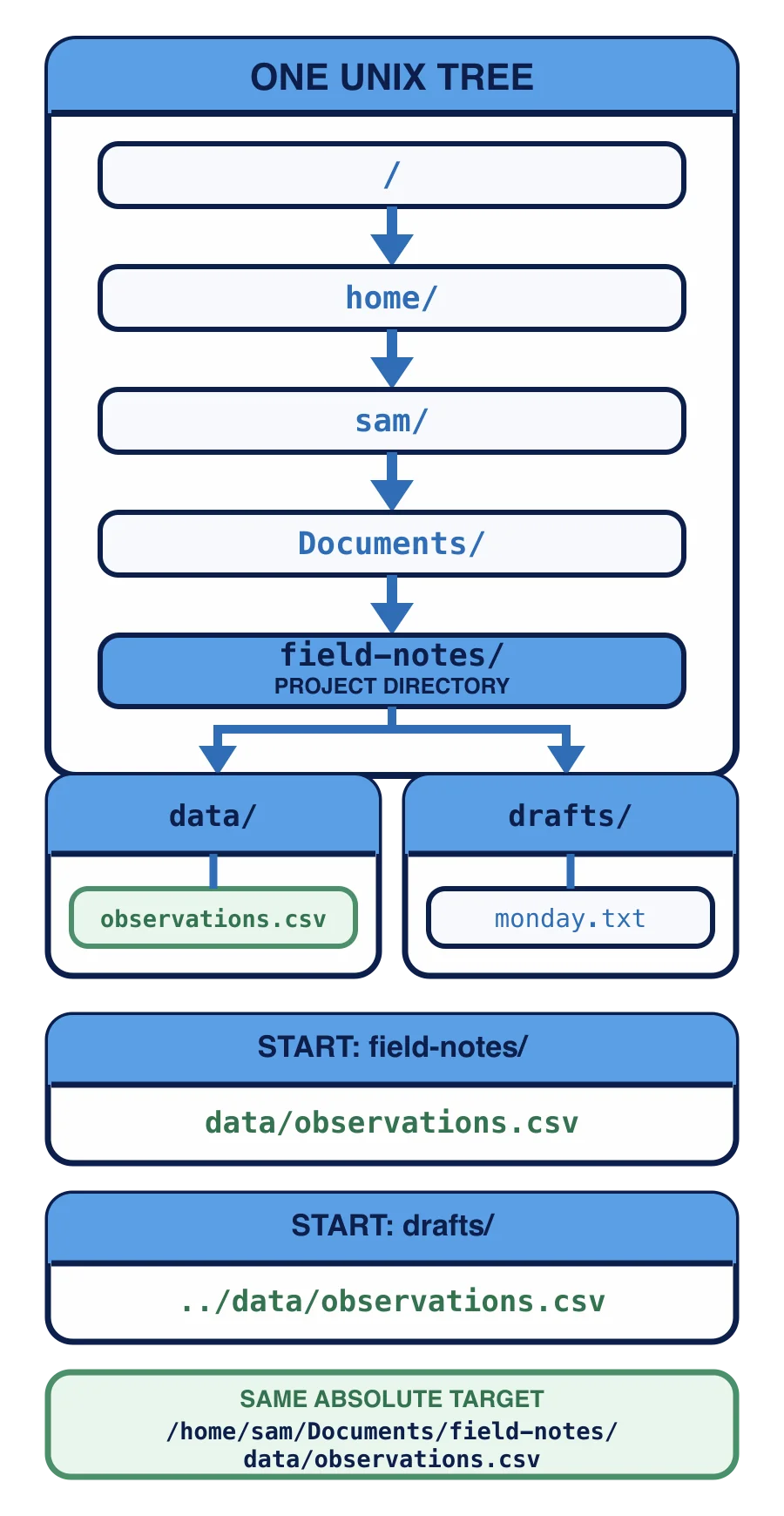
The destination never moved. Only the directions changed because your starting point did.
The same reasoning on Windows
Working directory:
C:\Users\Sam\Documents\field-notes
Both reach the file:
Absolute: C:\Users\Sam\Documents\field-notes\data\observations.csv
Relative: data\observations.csv
The drive letter plus the backslash after the colon is what makes the first absolute. C:data\observations.csv is missing that backslash and is not a complete drive-rooted path. Write C:\... when you mean absolute and the ambiguity never comes up.
From C:\Users\Sam\Documents\field-notes\drafts:
..\data\observations.csv
Your working directory is /home/sam/Documents/field-notes/drafts. Which relative path reaches /home/sam/Documents/field-notes/data/observations.csv?
Resolve a path on paper
Do this before you ask a command to change anything, and keep doing it until it becomes automatic:
Write down the working directory.
Decide whether the path resets to a root or starts where you are.
Take each segment left to right. Stay put for
., go up for.., descend for a name.Write down where you landed, and compare it to where you meant to land.
Try it. Working directory C:\Users\Sam\Documents\field-notes\data\raw, path ..\..\drafts\outline.txt:
Start:  C:\Users\Sam\Documents\field-notes\data\raw
..      C:\Users\Sam\Documents\field-notes\data
..      C:\Users\Sam\Documents\field-notes
drafts  C:\Users\Sam\Documents\field-notes\drafts
target: C:\Users\Sam\Documents\field-notes\drafts\outline.txt
That takes four lines and no guessing, and it works the same way on every platform.
Working directory /home/sam/field-notes/data/raw, path ../../drafts/outline.txt. Put the resolution steps in order:
Drag the options into order, or use the arrow buttons.
..moves to/home/sam/field-notesdraftsdescends to/home/sam/field-notes/draftsStart at
/home/sam/field-notes/data/raw..moves to/home/sam/field-notes/dataoutline.txtnames the file at/home/sam/field-notes/drafts/outline.txt
If the same relative spelling behaves differently today, a changed working directory is one possible cause. Compare today’s starting point and the target tree before moving anything. A path resolved from the wrong place may reach a different target, or it may name nothing at all; either result is evidence about where the route first stopped matching.
You have done all of this without touching a